Kensington VeriMark Guard
| Vendor Site | AADGUID | Style | Body Style | Origin |
|---|---|---|---|---|
| d94a29d9-52dd-4247-9c2d-8b818b610389 | Thumb drive | Unibody aluminum | Taiwan |
| Waterproof rating | Biometric | USB | NFC | BT |
|---|---|---|---|---|
| None | Yes | USB-A | No | No |
| FIDO Authenticator Level | FIPS Certified | Microsoft Verified |
|---|---|---|
| Level 1 | No | Yes |
Overview
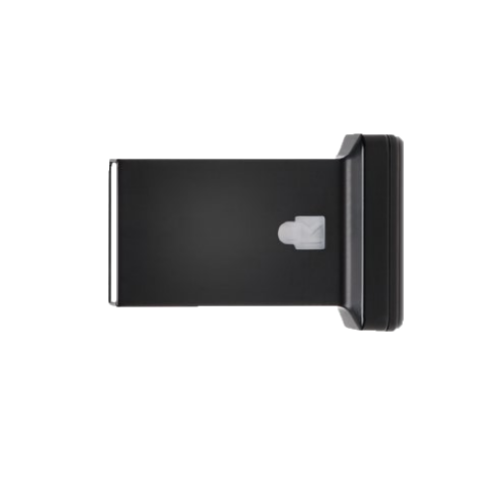
With a relatively squat design, the Kensington VeriMark Guard FIDO2 security key looks like a small USB thumb drive with a bit of a blown-out end. On that end is where you’ll find the biometric fingerprint reader. The quality of the device feels quite high, with a black aluminum body, and just one opaque lock icon on it that lights up with an LED underneath. The VeriMark Guard comes with a small plastic case as well that has a narrow loop for attaching to a keychain.
While it is certainly portable, this key has the feel as more of a leave-in solution. While it protrudes more than it’s Feitian, Yubico or Token2 counterparts for leave-in style security keys, the tradeoff is that this one comes with the fingerprint reader.
Available features and management
The VeriMark Guard supports FIDO2 as well as FIDO U2F.
Enrollment and usage
What seems interesting is when I took the key out of the box and started to first try to enroll it, the key already had a PIN configured on it, of which I had no idea what it was. I started poking and the documentation, and it makes me believe that Kensington wants you to use their associated software to force enrollment of biometrics and change the PIN. The problem, however, is that the software requires running as administrator. Along with that, I was not able to get the latest version to work on Windows 11.
I decided to just factory reset the VeriMark Guard within Windows, and after that I was able to enroll it just fine.
The key worked consistently after enrollment without issue, both using with a PIN and sensor as capacitive touch, as well as after enrolling my fingerprint and using biometrics.
The key was factory reset without issue.